Posts

Showing posts with the label csv

Another way to mass-enroll students/teachers into a Moodle course (using plugin)

One day, I want to enroll more than 100 students into a Moodle course but there's no built-in feature. Then I found this amazing plugin: Plugin download URL:  https://moodle.org/plugins/local_mass_enroll 1. Download the zip file from the above link 2. In your Moodle instance, go to Site administration > Plugins > Install plugins > upload the zip file and install the plugin 3. Prepare a csv file which has the following format: email, student1@myschooldomain.com, student2@myschooldomain.com, ... Note: you can use either login (username) or idnumber 4. Go to the course you want to mass enroll students 5. Under Administration > Course administration > Users > Click Bulk enrolments and setup as following: Click Choose file and upload the csv file. CSV delimiter -> select " , " Encoding: UTF-8 Role to assign: Student First column contains: Email Address (or Login or Id number) Create group(s) if needed: No Create grouping(s) if...
MySQL query results to a CSV file

You can use this syntax to output your MySQL query results to a CSV file, for example: SELECT blog_id, path, registered, last_updated      INTO OUTFILE '/tmp/test.csv'      FIELDS TERMINATED BY ','      OPTIONALLY ENCLOSED BY '"'      ESCAPED BY '\\'      LINES TERMINATED BY '\n'  FROM wp_blogs  WHERE path IN ('/105102/','/105095/','/103206/'); Note: It's better to output the file to /tmp directory because mysql user has permission to write there.

WordPress Multisite - Create user and blog in command line using php

If you have a WordPress Multisite instance and you have to create blogs for your users, using the web interface of WordPress is not a good idea because you have to do it one by one. Here is a solution: 1. Create a csv file contains all the user information. 2. Using php and WordPress's function to create users and blogs. 3. Enjoy You can start from here. This is a php script I wrote to create a single user, blog, and add that user as an administrator of the blog: Usage: 1. Place that script inside a subfolder of your WordPress installation, for example: /var/www/wordpress/your_custom_scripts/create_user_blog.php 2. Run it: $ php /var/www/wordpress/your_custom_scripts/create_user_blog.php <username> <password> <user's display name> <user's blog path> <site category> Notes: 1. In the script I used my company-assigned id_number as user's blog path. 2. I also add site_category option to the new blog to categorize all my ...

csv to list in python

This is dead simple way to read a csv file and feed the data into a Python list: import csv with open('file.csv', 'rb') as f:     reader = csv.reader(f)     your_list = list(reader) print your_list # [['This is the first line', 'Line1'], # ['This is the second line', 'Line2'], # ['This is the third line', 'Line3']] Reference:   http://stackoverflow.com/questions/24662571/python-import-csv-to-list

Mass reset Active Directory users's password remotely using python

In Microsoft Windows Server 2008 (Active Directory Domain Controller), you can reset a user password using command prompt with dsmod: dsmod user <user dn> -pwd new_password What if you want to do it from remote? Python and Paramiko module will help: 1. In the Active Directory domain controller, install  cygwin with ssh module. Create a ssh user. 2. Still in the Active Directory domain controller, export the user's dn list to a csv file using command prompt: dsquery user "ou=MyUser,dc=my,dc=domain,dc=com" | dsget user -samid -fn -ln -dn > myusers.csv 3. Open names.csv, add a column name "password" and fill in new password for all the user. Save and copy it to your computer. 4. In your computer (I'm running Ubuntu 14.04), install all the paramiko python module: $ sudo pip install paramiko then run this python script: $ python mass_reset_ad_passwd.py /path/to/myusers.csv

Transposing csv data using Python

Here is the case: You have this original csv data: name,course,number A,Genius,12 A,Super,13 B,Goddess,15 C,The Man,17 C,The Woman,10 C,Harvard,11 C,StanFord,18 and you want to create another csv file that uses name 's values as columns and group the course 's value as rows: A,B,C Genius,Goddess,The Man Super,'',The Woman '','',Harvard '','',StanFord Here is what I did to achieve that: 1. Read the original csv file and convert it into a list of dicts 2. Transpose the list by grouping the name column: Get all the name's value group_cols = [] for o in original_list: if o[group_col_name].strip() not in group_cols: group_cols.append(o[group_col_name].strip()) For each of the name, loop through the original list and append the according course's value to a tmp list (with the name as the first item), then add all of the tmp lists to a new list: thelist = [] for c in group_co...

Mass enroll users into a Moodle course

Image
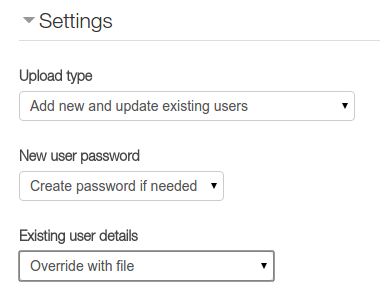
To mass enroll users into a Moodle course, you can use the upload users csv file method as following: Assuming: All the student accounts are in Active Directory and being used to login into Moodle All student (in the csv file) will be enrolled into my-course-short-name course. 1. Prepare the csv file with student information, let's call it students.csv: idnumber,lastname,firstname,email,username,auth,course1,type1,role1,enrolstatus1 102340,Joe,Student One,jstudent1@my.moodle,jstudent1,ldap,my-course-short-name,1,student 102342,Joe,Student Two,jstudent2@my.moodle,jstudent2,ldap,my-course-short-name,1,student ... 2. Go to Site administration > Users > Accounts > Upload users to upload students.csv 3. In the Upload users preview screen, config as following: 4. Click Upload users to finish.

Get WordPress Multisite blog_id by blog's path using wp-cli

You have a csv file has this format (mycsv.csv): path,some_field somepath,some_value anotherpath,another_value ... and you want to get the blog_ids of those path(s). This following bash shell will help you to get blog_ids by taking advantages of wp-cli, get_blogid_from_url.sh: $ chmod +x get_blogid_from_url.sh $ ./get_blogid_from_url.sh mycsv.csv myblog.com /wordpress/path > result.csv The result will be something like: 546,myblog.com/somepath/ 456,myblog.com/anotherpath/ ...

Parsing csv files in shell script

There are many ways to parse csv file in shell script. Here is the one that works well for me: Assuming I have this csv file, mycsv.csv: super,genius cool,awesome ... This script, parse_csv.sh , will parse mycsv.csv: $ nano parse_csv.sh #! /bin/bash IFS=',' while read f1 f2 do         # remove the carriage return character at the end of each line (path column)        newvar= $(echo $f2 | sed -e 's/\r//g')        echo "First column: $f1"        echo "Second column: $newvar" done < $1 $ sudo chmod +x parse_csv.sh $ ./parse_csv.sh mycsv.csv

CSV file to PHP array

Here is a pretty cool snippet to read csv file and turn it into a php array: function read_csv($csv_path){ $file = fopen($csv_path, 'r'); while (!feof($file) ) { $lines[] = fgetcsv($file); } fclose($file); return $lines; }

How to calculate age from date of birth in Excel or LibreOffice Calc

To calculate the age from date of birth in excel, use this formula in column B (assuming I have the Date Of Birth data in column A): =DATEDIF(A2,TODAY(),"Y") & " Years, " & DATEDIF(A2,TODAY(),"YM") & " Months, " & DATEDIF(A2,TODAY(),"MD") & " Days"     | A                |  B               | 1  | DOB          | Age            |     |---------------|---------------| 2  |04/28/1989  |                    |     |---------------|---------------| 3  |12/08/1988  |                    |     |---------------|---------------| If you want to calculate age at a certain date, for example 08/12/2015, use this: =DATEDIF(B2,DATE(2015,8,12),"Y") & " Years - " & DATE...

Active Directory - Update AD users's field data starting with number ZERO from a csv file

Last Friday, when I was trying to update Active Directory users data from a csv file, I accidentally changed value of a very important attribute (let's call it the X field). X was a string of numbers which has a number ZERO at the beginning. And my company uses X to identify users in another system which requires ids in the form of 0xyz, and 1xyz. I exported all the users AD data, modified value of some of the fields, than updated back to Active Directory. I realized that X value of all users had been changed (without ZERO at the beginning). I totally forgot that csv/excel will ignore any number ZERO if it stays at the beginning of the number (e.g. 061898989 will be translated to 61898989). So, to change the value back to what It was, I did: 1. Export X value data of all the users to a csv file. 2. Add ZERO to the beginning of attribute X's data of all users (using a text editor, find & replace) 3. Make all field were quotes ("") 4. Update the modified...

Python csv - Error when read data from csv file

Image
I wrote a utility function to read data from a csv file and add them to a dictionary ( read here ). But, you will get the following error when using that function: Traceback (most recent call last): ...     sniffdialect = csv.Sniffer().sniff(csv_file.read(10000), delimiters='\t,;')   File "/usr/lib/python2.7/csv.py", line 184, in sniff     raise Error, "Could not determine delimiter" _csv.Error: Could not determine delimiter It is because the csv file you are using is not in Unicode (UTF-8) format. So, to fix this error, please make sure the input csv file is formatted with UTF-8 standard (Not only Unicode). * Not good: * Good:

Python - Convert csv to excel

This python snippet is useful to convert a csv file to excel file (.xlsx): * Install openpyxl module: $ pip install openpyxl excelutil.py ======== import csv from openpyxl import Workbook from openpyxl.cell import get_column_letter def csv_to_excel (csv_path, delimiter, delimiter_txt, excel_path, excel_title): csv_file = open(csv_path, 'rb') csv.register_dialect(delimiter_txt, delimiter=delimiter) reader = csv.reader(csv_file, dialect=delimiter_txt) wb = Workbook() ws = wb.worksheets[0] ws.title = excel_title for row_index, row in enumerate(reader): for column_index, cell in enumerate(row): column_letter = get_column_letter((column_index + 1)) ws.cell('%s%s'%(column_letter, (row_index + 1))).value = cell wb.save(filename = excel_path) csv_file.close() For example, I want to convert mycsv.csv to myexcel.xlsx: >>> from excelutils import csv_to_excel >>> cp = 'mycsv.csv' >>> de =...

Active Directory - Great free tool to reset password in bulk

I have to reset multiple accounts passwords. I's looking for a way to use the powershell to read csv file and then update the password just like I did before ( http://iambusychangingtheworld.blogspot.com/2013/08/activedirectory-update-user-info-from.html ). Unfortunately, the Active Directory Module for Windows PowerShell is only available in Windows Server 2008 R2 and Windows 7 which I don't have now (only Server 2008 SP2). So, I's googling around and then I found this: Bulk Password Control http://www.wisesoft.co.uk/software/passwordcontrol/bulk_password_control.aspx This free tool can help me update all the users passwords which are auto generated. It even let me export the information to csv file. It's so cool! Genius!!! Note: install this tool inside the Active Directory Domain Controller.

Python - Write dictionary data to csv file

Image
Assuming I have a list of dictionaries called mydict: mydict = [{'name': 'Trinh Nguyen', 'value': 'Super Genius'}, {'name':'God', 'value': 'Cool'},...] and I want to write that list to a csv file, so I write the following reusable python function: import csv def write_dict_data_to_csv_file(csv_file_path, dict_data):     csv_file = open(csv_file_path, 'wb')     writer = csv.writer(csv_file, dialect='excel')         headers = dict_data[0].keys()     writer.writerow(headers)     for dat in dict_data:         line = []         for field in headers:             line.append(dat[field])         writer.writerow(line)             csv_file.close() write_dict_data_to_csv_file('mycsv.csv', mydict)

Python - Get dictionary data from csv file

Image
Read the csv file, and put the data into a dictionary: #!/usr/bin/python import csv def csv_to_dict(csv_file_path):     csv_file = open(csv_file_path, 'rb')     csv_file.seek(0)     sniffdialect = csv.Sniffer().sniff(csv_file.read(10000), delimiters='\t,;')     csv_file.seek(0)     dict_reader = csv.DictReader(csv_file, dialect=sniffdialect)     csv_file.seek(0)     dict_data = []     for record in dict_reader:         dict_data.append(record)     csv_file.close()     return dict_data             

ActiveDirectory - Export Data to CSV

Image
1. To export all data from Active Directory into a file called test.csv csvde -f test.csv 2. Export data in a specific DN csvde -d "OU=MyOU,DC=domain,dc=local" -f test.csv 3. Export with filters csvde -f test.csv -r "(&(objectClass=user)(objectCategory=person)" 4. Export data with filters and specific DN csvde -d "OU=Directors,DC=domain,dc=local" -f test.csv -r "(&(objectClass=user)(objectCategory=person)" 5. Get data of some fields only csvde -d "OU=Directors,DC=domain,dc=local" -f test.csv -r "(&(objectClass=user)(objectCategory=person)" -l " givenName, sn, mail" For more information, read this article: http://www.techrepublic.com/blog/data-center/simplify-admin-tasks-by-exporting-active-directory-data-with-csvde/

ActiveDirectory - Update User Info From CSV

  We will update the Department of our users using PowerShell: 1. Create a CSV file contains sAMAccountName column and all needed information, e.g. C:\userlist.csv: sAMAccountName,department supergenius,Super Man Department ironman,The Advanger 2. In AD Controller, open Active Directory Module for Windows PowerShell , and run the following command: Import-Csv C:\userlist.csv | foreach { Get-ADUser -Identity $($_.sAMAccountName) | Set-ADUser -Department $($_.department) } Update: the Active Directory Module for Windows PowerShell is only available in Windows Server 2008 R2 and Windows 7 .