Posts

Showing posts with the label dashboard

How to fix the issue when your user cannot see other users in Odoo 11

Image
In Odoo 11, if your user cannot see other users in the Users dashboard (http://your.domain.com/web?&debug=#view_type=list&model=res.users&menu_id=67&action=65), make sure you uncheck the " Portal " and " Public " in the Other Extra Rights section in that user's setting:

Reset the containerized OpenStack Dashboard admin's password using JuJu

If you're running a containerized OpenStack's architecture (e.g. conjure-up will deploy OpenStack this way), you must have a tool to orchestrate all the containers. I'm using Ubuntu's JuJu  and really love it. For example, in order to reset the OpenStack Dashboard admin's password, I don't have to directly go into the keystone service to do that, I just run this from the host machine: 1. Find the machine's number and ip address on which the keystone installed $ juju machines For example, the machine number is 9, ip address is 10.232.45.216 2. Reset the admin's password to 12345678 (the default user is admin):  $ juju run "sudo keystone --os-auth-url=http://10.232.45.216:35357/v2.0 --os-endpoint=http://10.232.45.216:35357/v2.0 --os-token=48FM7htnHkxxHkNT2RmMNxwpYRRcnmp8dbghtwMYWcg2BRRs9qmcMMtRww8tTCZ4 user-password-update --pass 12345678 admin" --machine=9

How to access OpenStack Dashboard installed in a headless Ubuntu server using conjure-up

After I finished installing OpenStack using Ubuntu's conjure-up on a single machine , I found myself struggle to access the dashboard. The only machine that can access the OpenStack Dashboard is the host server which is a headless Ubuntu server. It's because conjure-up installs OpenStack by deploy its components to multiple containers with a virtual private network that connects those services. So in order to access the dashboard from outside, I had to create an iptable rule that NAT the OpenStack Dashboard container's http port (443 or 80) to a host server's port (443 properly). Here is an example: sudo iptables -t nat -A PREROUTING -p tcp -d <ip of the host server> --dport 443 -j DNAT --to-destination <internal ip of the openstack dashboard service, usually 10.x.x.x>:443 After that, I was able to access the OpenStack web interface from other machines.

How to delete directory synced users from the Office 365 dashboard

To be able to delete directory synced users on Office 365 dashboard, you have to disable the sync first on your on-premise server: 1. Open Azure Active Directory Module for Windows PowerShell 2. Connect to the Office 365 server by running this cmdlet in PowerShell and enter your Office 365 admin user (e.g. yyy@xxxx.onmicrosoft.com ): Connect-MsolService 3. Run this following command to disable directory sync: Set-MsolDirSyncEnabled –EnableDirSync $false It may take to 72 hours for the deactivation fully done. 4. Check if the sync was fully disabled by this command: (Get-MSOLCompanyInformation).DirectorySynchronizationEnabled 5. Go Office 365 dashboard and delete the users you want Reference: https://support.microsoft.com/en-gb/kb/2619062

#600 Fix Wordpress's admin menu issue in Chrome 45

Image
If you noted, the admin menu of WordPress (4.3) is messed in Chrome (v45): According to a StackOverflow post there is a known bug in chrome (more info here ). The source of the problem stems from Slimming Paint which is enabled by default in Chrome 45. Disabling slimming paint fixes the issue. To disable this feature, visit chrome://flags/#disable-slimming-paint in Chrome and Enable the Disable slimming paint option, and make sure the other two Enable options are disabled because they will override the Disable option. Hopefully, it will be fixed in Chrome  version 47 . For now, you can do as following to solve this issue: add this in your template's functions.php (single site) or in mu-plugins/functions.php (multisite): function admin_menu_fix() {     echo '<style>     #adminmenu { transform: translateZ(0); }     </style>'; } add_action('admin_head', 'admin_menu_fix'); References: [0] http://stackoverflow.com/ques...

Manage all your WordPress sites in a single dashboard with InfiniteWP

Image
If you have so many WordPress sites to manage like me, you will find yourself getting into trouble when you have to look after every site's updates. plugins, themes... It would be great if we have only one place to manage all the sites. Fortunately, I found a pretty good solution, the InfiniteWP, and it's free. (This's not a rare situation anyway) InfiniteWP's official website: http://infinitewp.com/ Here are the only few things you have to do in order to setup a central place to control all your WordPress sites: 1. In every WordPress site, install the InfiniteWP client plugin: After you install the plugin, activate it to get the client details: 2. Install the InfiniteWP: a. Download the InfiniteWP source, unzip, and copy to /var/www/iwp Download link:  http://infinitewp.com/installing-options/ $ unzip IWPAdminPanel_v2.4.3.zip $ sudo cp -R IWPAdminPanel_v2.4.3 /var/www/iwp $ sudo chown -R www-data:www-data /var/www/iwp b. Create a MariaDB ...

edX-platform - Error in dashboard when logging in as superuser account

Image
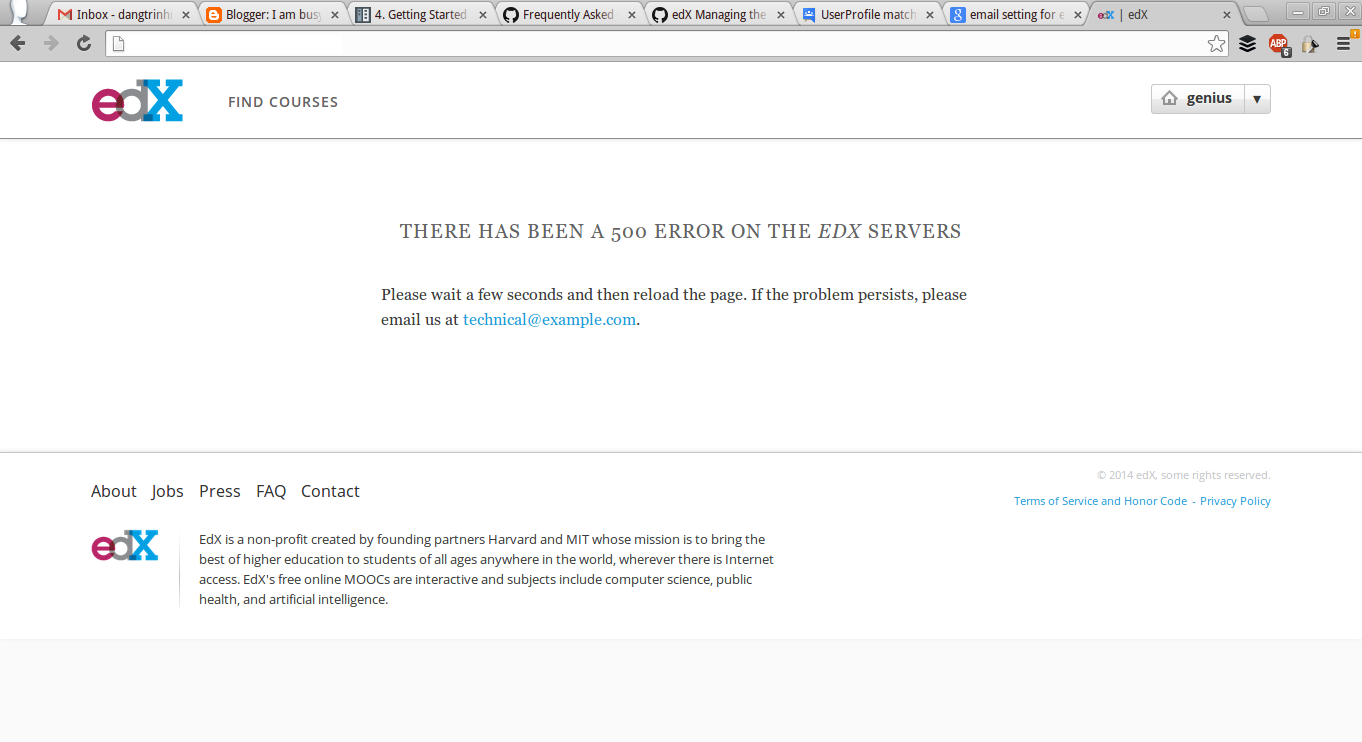
In edX-platform, you can access the Django's interface by accessing this following url: http://your.url.com/admin And logging in using the superuser account. But, after you logged in, you access the home page, you will see this error: You can see the stack trace at /edx/var/log/supervisor/lmstderr.log 2014-02-25 01:14:51,112 ERROR 5367 [django.request] base.py:215 - Internal Server Error: /dashboard Traceback (most recent call last):   File "/edx/app/edxapp/venvs/edxapp/local/lib/python2.7/site-packages/django/core/handlers/base.py", line 111, in get_response     response = callback(request, *callback_args, **callback_kwargs)   File "/edx/app/edxapp/venvs/edxapp/local/lib/python2.7/site-packages/django/contrib/auth/decorators.py", line 20, in _wrapped_view     return view_func(request, *args, **kwargs)   File "/edx/app/edxapp/venvs/edxapp/local/lib/python2.7/site-packages/django/utils/decorators.py", line 91, in _wrapped_view   ...

Ubuntu - Add an application to the dashboard

In order to add an application (let's call it my_app) to the Ubuntu's dashboard (Unity): + Create a .desktop file in ~/.local/share/applications/: sudo nano ~/.local/share/applications/my_app.desktop with these line: [Desktop Entry] Name=the name you want shown Comment= Exec=command to run Icon=icon name Terminal=false Type=Application StartupNotify=true + Logout and Login again, open the dashboard, and my_app will show up.