Posts

Showing posts with the label hide

How to hide the "Manage databases" link from the Odoo's login link

There is one dangerous setting in Odoo that beginners like me hardly notice: the "Manage databases" link on the login link. Follow that link you will be able to know the database name, create new databases, destroy the current one etc... Even though it may require a master password for all the operations, exposing those functionalities to the public is quite dangerous. Here is how you can hide that link: 1. Edit the odoo's setting: sudo nano /etc/odoo/odoo.conf 2. Modify this line as follows: ... list_db = False ... 3. Save and restart odoo sudo systemctl restart odoo Notes: For those who run odoo in docker, follow these steps instead: 1. Copy the odoo's setting file to the host machine: docker cp 05829b85c385:/etc/odoo/odoo.conf . 2. Edit the file like above 3. Copy the setting file back to the odoo docker instance: docker cp odoo.conf 05829b85c385:/etc/odoo/odoo.conf 4. Restart docker instances (including Postgres instance) sudo...
Hide desktop icons in Ubuntu 14.04 using Nemo files manager

You can just run this command to hide all the desktop icons in Ubuntu 14.04 that is using Nemo files manager: $ gsettings set org.nemo.desktop show-desktop-icons false

Hide TreeView in Atom by default

To stop Atom keeps showing TreeView whenever you open the editor: >> Edit >> Open Your Init Script >> Old way: atom.workspaceView.trigger 'tree-view:toggle' New way (Atom v0.181.0): atom.commands.dispatch atom.views.getView(atom.workspace), 'tree-view:toggle' Save!

Hide categories from your WordPress homepage

Using the WordPress's Loop  , pre_get_posts , you can hide certain categories from your homepage. In your theme's functions.php , add these following: function hide_category_home( $query ) { if ( $query->is_home ) { $query->set( 'cat', '-5, -34' ); } return $query; } add_filter( 'pre_get_posts', 'hide_category_home' ); 5 and 34 are IDs of categories you want to hide. Cool!

Hide a particular user from the Lightdm login screen in Ubuntu 14.04

In Ubuntu 14.04, to hide a particular user from the LightDM login screen is a little bit tricky because of this bug since 2011: https://bugs.launchpad.net/ubuntu/+source/accountsservice/+bug/857651 Here is a workaround: 1. Open /etc/lightdm/users.conf: $ sudo nan /etc/lightdm/users.conf 2. Add the user you want to hide to this line (let's call it trinh): hidden-users=nobody nobody4 noaccess trinh 3. Change the uid of that user to under 500: $ sudo usermod -u 499 trinh 4. Reboot

nginx - Hide the identity and version of nginx

Image
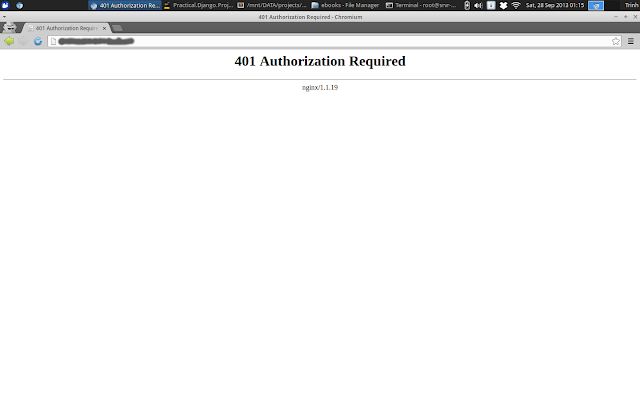
Whenever a user access a restricted page without a appropriate privilege, nginx server will redirect her to an error page: It will show its identity and version (nginx ). For the security's sake I want to hide those information and show my custom page instead of that default page. So, do the following: 1. Hide the nginx version: open the /etc/nginx/nginx.conf, edit the line: erver_tokens off;  save and exit. 2. Direct those 40x error to my custom page in /usr/share/nginx/www/40x.html: in the site's configuration (/etc/nginx/site-available/default) :         error_page 401 402 403 404 /40x.html;                                                                                                     ...