Posts

Showing posts with the label moodle

Moodle user keeps being redirected to user profile page after login and how to fix

One day you noticed a user keeps being redirected to the Moodle's user profile page after she successfully log in and you cannot do anything. I got that problem too and it took me a while to figure out how to fix it. Login to Moodle using an administrator account and update all the required field of that user. Save it and everything will be ok. It's because for some reason your user missing some required information (such as email address in my case). You will wonder how this happens because you cannot create a user if you don't input all the required information. But, there is one scenario this will happen, It's LDAP. When a user login into Moodle the first time, Moodle will create the user as long as it has username. In my case, the user has everything it needs except for the email address. Interesting right? :D
Another way to mass-enroll students/teachers into a Moodle course (using plugin)

One day, I want to enroll more than 100 students into a Moodle course but there's no built-in feature. Then I found this amazing plugin: Plugin download URL:  https://moodle.org/plugins/local_mass_enroll 1. Download the zip file from the above link 2. In your Moodle instance, go to Site administration > Plugins > Install plugins > upload the zip file and install the plugin 3. Prepare a csv file which has the following format: email, student1@myschooldomain.com, student2@myschooldomain.com, ... Note: you can use either login (username) or idnumber 4. Go to the course you want to mass enroll students 5. Under Administration > Course administration > Users > Click Bulk enrolments and setup as following: Click Choose file and upload the csv file. CSV delimiter -> select " , " Encoding: UTF-8 Role to assign: Student First column contains: Email Address (or Login or Id number) Create group(s) if needed: No Create grouping(s) if...

Moodle Installation error – Database MySQL version 5.5.31 is required and you are running 5.5.5.10.1.13

I got this error when trying to install Moodle 3.3 on a Ubuntu 16.04 server with MariaDB. Database MySQL version 5.5.31 is required and you are running 5.5.5.10.1.13 This is a workaround: Open config.php and change this: $CFG->dbtype = 'mysqli'; to $CFG->dbtype = 'mariadb';

Output session key of Moodle to add custom log out link

Here is how you can output the user's session key in Moodle: <?php global $USER; $sesskey = $USER->sesskey; $logout = '<a href="http://yourdomain.com/login/logout.php?sesskey='.$sesskey.'">Logout</a>'; ?> Reference:  https://moodle.org/mod/forum/discuss.php?d=166086

Restore Moodle course in command line with MOOSH

It's the next step of this , restoring your big Moodle course in command line with MOOSH: course-restore Restore course from path/to/backup.mbz to category or existig course. Example 1: Restore backup.mbz into category with id=1 moosh -n course-restore backup.mbz 1 Example 2: Restore backup.mbz into existing course with id=3 moosh -n course-restore -e backup.mbz 3

Backup Moodle courses in command line using MOOSH

Sometimes, you cannot backup your Moodle course because it is too big which makes the web server timeout. In that situation, backing up the course using command line is a good way to go. MOOSH will help you perfectly. Github repository: https://github.com/tmuras/moosh Official website and documentations:   http://moosh-online.com/ 1. Install MOOSH in your Ubuntu server:  sudo apt-add-repository ppa:zabuch/ppa  sudo apt-get update  sudo apt-get install moosh 2. Go to moodle installation folder and run this command: $ moosh -n course-backup -f /path/to/where/you/store/backup/mycourse.mbz <course_id>

Moodle - Get courses by category using php script

So, programmer, I heard that you want to get all the moodle courses of a category programmatically? Here you go: It takes advantages of Moodle's  lib/coursecatlib.php.

Update Moodle user's photo programmatically

In some cases, being able to update the moodle user's photo using command line instead of the web interface is pretty helpful. Here is the PHP snippet I wrote which will accomplish that: Notes: 1. The photo was name after the user's idnumber. You can use the username instead. 2. Need to run the script as root or sudo.

Get user by username (or any other attributes) in Moodle

You can do as the following snippet to get the user object by username (or any other attributes) #!/usr/bin/php <?php define('CLI_SCRIPT', true); require_once('../config.php'); global $DB; $user = $DB->get_record('user', array('username'=>'myusername'));                                                              print_r($user); exit; ?> Reference:   https://docs.moodle.org/dev/Data_manipulation_API

Mass enroll users into a Moodle course

Image
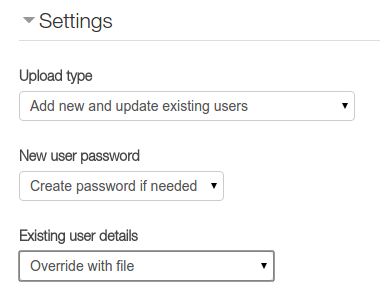
To mass enroll users into a Moodle course, you can use the upload users csv file method as following: Assuming: All the student accounts are in Active Directory and being used to login into Moodle All student (in the csv file) will be enrolled into my-course-short-name course. 1. Prepare the csv file with student information, let's call it students.csv: idnumber,lastname,firstname,email,username,auth,course1,type1,role1,enrolstatus1 102340,Joe,Student One,jstudent1@my.moodle,jstudent1,ldap,my-course-short-name,1,student 102342,Joe,Student Two,jstudent2@my.moodle,jstudent2,ldap,my-course-short-name,1,student ... 2. Go to Site administration > Users > Accounts > Upload users to upload students.csv 3. In the Upload users preview screen, config as following: 4. Click Upload users to finish.

How to set course format for multiple courses in Moodle

It's pretty cool using MOOSH command line tool of Moodle. You can set course format to topics for multiple cources in Moodle by running this command: moosh course-config-set category 7 format topics Just awesome!!! Reference: http://moosh-online.com/commands/

How to make the Atto editor of Moodle always expanded

Image
Be default the Atto HTML editor is collapsed. It would  be helpful if we can make it expanded so the users don't have to click the Show/Hide button all the time. And here is how: Go to Site administration  > Plugins  > Text editors  > Atto HTML editor  > Atto toolbar settings , scroll to the Toolbar config box and remove the setting ' collapse = collapse '. Save the changes.

Assigning roles to users in Moodle based on their profile data using php script

In case you want to allow some particular blocks to be seen only by a particular group of users in your Moodle, you can do as below: Note: assuming you've already created all the user accounts in your Moodle. 1. Categorize your users using some fields like department or description: For example, I have Middle School Students and High School Students. Each of the students has Graduation Year information stored in the department field of the user profile. I will then use that field to determine which school they are studying now: Student Number 1's department: 2015 class => High School Student Number 2's department: 2021 class => Middle School The below snippet is pretty handy to identify which school a student is studying based on her graduation year: <?php function class_to_grade_level ($class_of) { // you may want to change the timezone date_default_timezone_set('Asia/Ho_Chi_Minh'); $grad_year = intval($class_of); $curr...

Make Moodle's Custom Menu Item URLs to open in a new window

Be default, when you click the menu item you add in Moodle, you will be redirected to that link. If you want the menu open in a new window, you can do the following (example): In Site administration -> Appearance -> Themes -> Theme settings (or http://your.moodle.url/admin/settings.php?section=themesettings), in the "Custom menu item" box: Moodle new window|http://www.moodle.org/ " target="_blank" But it fails if the URL has special characters like: Moodle new window|http://www.moodle.org/ ?param1&param2 " target="_blank"

Get all users in moodle (2.x)

To get all users in moodle using the API(s), you can use the following snippet: #! /user/bin/php <?php define('CLI_SCRIPT', true); require_once('config.php'); // if you call DB inside a function, you'll need: // global $DB; $allusers = $DB->get_records('user'); foreach($allusers as $user) {      echo "User id $user->id is $user->username\n"; } ?>

Moodle with SSL behind Varnish

Ok, after a whole morning working on my moodle server, I finally made it work with SSL while standing behind a Varnish cache server. Things are just as simple as the following steps: A. Moodle Server Configuration: 1. Moodle's config.php: tell moodle to acknowledge the ssl proxy (the varnish) and provide users access via SSL link ... $CFG->wwwroot   = 'https://mymoodle.com'; $CFG->sslproxy  = true; ... 2. Nginx's configuration: one important thing here is that we still have to config the nginx to serve moodle at port 80 (without ssl) despite the moodle's configuration server {         listen 80;         root /var/www/moodle;         index index.php index.html index.htm;         server_name mymoodle.com;         access_log   /var/log/nginx/moodle-access.log;         error_log    /var/log/nginx/moodle-error.log;  ...

To use https (only) for Moodle with nginx

Image
To make your moodle instance work on https only is pretty simple with nginx: 1. Create a folder to contain the ssl certificate and key at /etc/nginx/ssl 2. Configure your nginx server block as following: 3. Create a simlink to the server block and restart nginx: $ sudo ln -s /etc/nginx/sites-available/mymoodlessl /etc/nginx/sites-enabled/mymoodlessl $ sudo service nginx restart 4. Add/modify these two lines to your moodle's config.php: $CFG->wwwroot   = 'https://mymoodle.com'; $CFG->sslproxy=true; 4. Do not enable " Use https for logins " in Site administration / ► Security / ► HTTP security 5. Done

Install moodle 2.8 with nginx and php5-fpm in Ubuntu14.04

The latest version of Moodle (v2.8) had been released a couple days ago with some improvement especially the gradebook ( click here for more information). This blog post is about deploying a moodle instance along side with nginx and php5-fpm . 0. Create the database: $ mysql -u root p MariaDB [(none)]> create database moodle; MariaDB [(none)]> grant all privileges on moodledb.* to 'moodleuser'@'localhost' identified by 'moodlepassword'; 1. Clone the latest stable Moodle using git: $ cd /var/www $ sudo git clone --depth=1 -b MOODLE_28_STABLE --single-branch git://git.moodle.org/moodle.git  $ sudo chown www-data:www-data -R moodle $ sudo chmod -R 0777 moodle 2. Create the moodle data directory: $ sudo mkdir /var/www/moodledata $ sudo chown www-data:www-data -R /var/www/moodledata $ sudo chmod -R 0777 /var/www/moodledata 3. Setup nginx: $ sudo service nginx restart 4. Config php5-fpm: make sure the /etc/php5/fpm/php.ini: ... ...

Add static pages to your moodle (2.7)

To add static pages to your Moodle (2.7): 1. Install this plugin (Addon): Github repo:  https://github.com/moodleuulm/moodle-local_staticpage Moodle plugin page:  https://moodle.org/plugins/view.php?plugin=local_staticpage 2. Create a directory to store your static pages, by default it is: /var/www/moodledata/staticpage set the correct permission for that folder: $ sudo chown -R www-data:www-data /var/www/moodledata/staticpage 3. If you want the users to login before they can see those static pages, modify this file: /var/www/moodle/local/staticpage/view.php as following: ... // Require login if Moodle is configured to force login //if ($CFG->forcelogin) { //    require_login(); //} require_login(); ... 4. Clean URL for your static pages: By default, the static page can be access via this URL: http://yourdomain/local/staticpage/view.php?page=yourpagename To make it pretty like this: http://yourdomain/static/yhourpagename.htm...

Moodle - Change a moodle site's domain name

Image
To change your moodle site's domain name, for example from "old.domain.com" to "new.domain.com" you have to do following things: 0. Point new.domain.com to your moodle site's IP address 1. Go to the replace admin tool in your moodle (still running at the old.domain.com) and replace http://old.domain.com with http://new.domain.com in every record that has the url: http://old.domain.com/admin/tool/replace/ ( version >= 2.5) 2. Open /moodle/root/path/config.php and change the wwwroot to the new domain: $CFG->wwwroot   = 'http://new.domain.com '; 3. Change your nginx / apache configuration to retrieve server name as the new.domain.com (I use nginx ): ... server_name new.domain.com; ... 4. Restart nginx and php5-fpm: $ sudo service nginx restart $ sudo service php5-fpm restart 5. In addition, you can also clean the cache of your moodle: $ sudo rm -rf /moodle/data/path/cache/caches...