Posts

Showing posts with the label Google

Backup and Restore your Google Site
Image
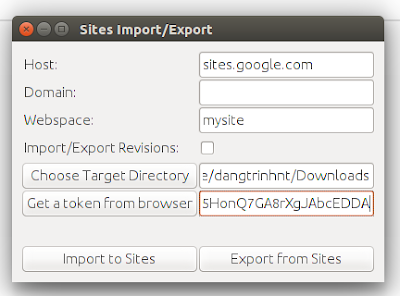
The public Google Sites (old version) does not give you an option to download a backup of your site so it will be a problem if you want to migrate to another place. Fortunately, a project (was originally hosted on Google Code) on Github that can make a copy of your site: "...using HTML Microformats it generates an XHTML version of Sites content suitable for offline browsing and simple HTTP hosting, which is also able to be losslessly imported back into sites." https://github.com/sih4sing5hong5/google-sites-liberation In Ubuntu you can use the tool as follows: 1. Install Java (I tested it with OpenJDK 8) 2. Download the jar package (It's version 1.0.6 when I'm writing this post): https://sih4sing5hong5.github.io/google-sites-liberation/jar/google-sites-liberation-1.0.6-jar-with-dependencies.jar 3. Execute the jar file to open the graphic interface: java -jar google-sites-liberation-1.0.6-jar-with-dependencies.jar With: Host: If not sites.google.c...

Auto merge data from multiple sheets in a google spreadsheet

Image
Ok, so I heard that you want to merge multiple sheets (let's say 2) in a google spreadsheet? That's easy (after hours of trying :"D) Assuming you have 2 sheets as following: Sheet1 Sheet2: In the merged list or master list you need these information: First Name, Last Name, Company, Job Title, Email Address 1. First thing you need to do is to find out a field to use as merge key . It's Email Address in this case. You also should be noticed that there should be no duplicate email addresses. So in order to get all the unique email addresses from 2 sheets, you need to use UNIQUE. But UNIQUE will also give you a blank row (ending row), so FILTER will do the job: =FILTER(UNIQUE({Sheet1!H2:H;Sheet2!E2:E}),NOT(ISBLANK(unique({Sheet1!H2:H;Sheet2!E2:E})))) Notes: Look at how I refer to another sheet (Sheet!H2:H...) You only enter the formula in cell E2 of the Master list, all the email addresses will be filled in other rows automatically. 2. Then ...

An issue with Google Apps Directory Sync and how to fix it

As you know, Google Apps Directory Sync is a great tool to synchronize your MS Active Directory accounts with your Google Apps (for Business or Education). It can help you map your user account structure into Google including the users, groups, OUs... You simply set up the proper search rules for users and groups of your AD architecture. The tool works great except for one thing: When you add a new user into a group in AD, it will add that user into the counter part of that group in Google. But, when you move that user out of the group in AD, the google account will not be removed from the google groups. What google only does is stop allowing the user to post to that group. After looking for the solution for a while, I came up with one hack that works: 1. Search for all users in AD groups which you want to sync to Google: http://www.dangtrinh.com/2016/07/get-all-ms-active-directory-group.html 2. Search for all users in Google groups: http://www.dangtrinh.com/2016/07/get-go...

Get Google Group members using GAM and python

You can get a list of Google Groups members using GAM by running this following command: gam print group-members group <group_email> The results is a csv-style list of group members: status,group,email,role,type,id ACTIVE,<group_email>,<user_email>,MEMBER,USER,110853351795805057050 ... You can take advantage of python to filter the result and put all the user email addresses into a list: Note: before using the python script, you have to make sure your GAM installation is up and running.

Foreach in Google Apps Script

In Google Apps Script, you can do the foreach loop as the following example:  var headers = ["super", "genius", "awesome"];  for each (var header in headers) {        Logger.log(header);  }

Link to add an event to your google calendar

This is a common functionality you want to add to your event website that will help your users add the event schedule to their Google calendar. Simply using this following html syntax: <a href="http://www.google.com/calendar/event? action=TEMPLATE &text=[event-title] &dates=[start-custom format='Ymd\\THi00\\Z']/[end-custom format='Ymd\\THi00\\Z'] &details=[description] &location=[location] &trp=false &sprop= &sprop=name: &ctz=[timezone]" target="_blank" rel="nofollow">Add to my calendar</a> For Example: <a href="https://www.google.com/calendar/render?action=TEMPLATE&text=Vietnam+Tech+Conference+2017&dates=20170311/20170313&details=For+details,+link+here%3a+http://vietnamtechconference.org&location=Saigon+South+International+School,+Tân+Phong,+Quận+7,+Ho+Chi+Minh+City,+Vietnam&output=xml&ctz=Asia/Ho_Chi_Minh" target="_blank" rel="nofollow...

HUMAN

Image
"Filmmaker and artist Yann Arthus-Bertrand spent 3 years collecting real-life emotional stories from more than 2,000 women and men in 60 countries. Those emotions, those tears and smiles, those struggles and those laughs are the ones uniting us all." Official website: https://humanthemovie.withgoogle.com/ VOL.1 VOL.2 VOL.3

Using Google Translate in your command line

It sounds pretty cool huh? Yes, it is. This project brings the translation service of Google down to your command line: Name: Translate-Shell Git repo: https://github.com/soimort/translate-shell 1. Install translate-shell the easiest way: $ cd /some/path/ $ wget git.io/trans $ chmod +x ./trans 2. Add /some/path/ to your PATH: $ nano ~/.bashrc ... PATH="/some/path:$PATH" $ source ~/.bashrc 3. Start translating, example: $ trans fr:vi "je t'aime" the result will be: je t'aime tôi yêu bạn Translations of je t'aime [ Français -> Tiếng Việt ] je aime te     tôi yêu bạn, anh yêu em, tôi yêu em, I love you, Em yêu anh For more command, please read the instructions at:  http://www.soimort.org/translate-shell/

Google Apps Script - Part 3 - Send email with form after submitting google form (advanced)

Image
So, you now know how to send people email after submitting a google form ? How about including in that email a form required that person to answer some questions? And the data that she submit will be inserted back into the response spreadsheet of the original form. Yeah, another form, sounds like inception huh :D Here is a hack: 1. In the email template, include the form: <h2>Please respond to the reflection question(s) posed to you in the Teacher Feedback form</h2> <form action="http://localhost:8081/myform" method="POST"> <input type="hidden" name="rownumber" value="{{rownumber}}"> <div> <textarea name="q" style="width:90%;height:100px;"></textarea> </div> <div> <button type="submit">Submit</button> </div> </form> The form will look something like this in the email: N...

How to disable mouse scroll wheel zoom on embedded Google Maps?

To disable mouse scroll wheel zoom on embedded Google Maps, you just need to set the css property  pointer-events  of the iframe to none : <style> #mapcontainer iframe {     pointer-events:none; } </style> <div id="mapcontainer"> <iframe src="https://www.google.com/maps/embed?pb=!1m18!1m12!1m3!1d49558.05949043515!2d-94.820775!3d39.075070499999995!2m3!1f0!2f0!3f0!3m2!1i1024!2i768!4f13.1!3m3!1m2!1s0x87c08e065e054485%3A0xf8652fbc74a54de0!2sEdwardsville%2C+KS%2C+USA!5e0!3m2!1sen!2s!4v1415172721068" width="600" height="450" frameborder="0" style="border:0"></iframe> </div> Further more, you can use this jQuery snippet to toggle the pointer on/off: <script>         jQuery('#mapcontainer').toggle(function () {                 jQuery('#mapcontainer iframe').css("pointer-events", "auto");         }, function(){       ...

edx-platform - Why didn't the THIRD_PARTY_AUTH feature work for me?

Image
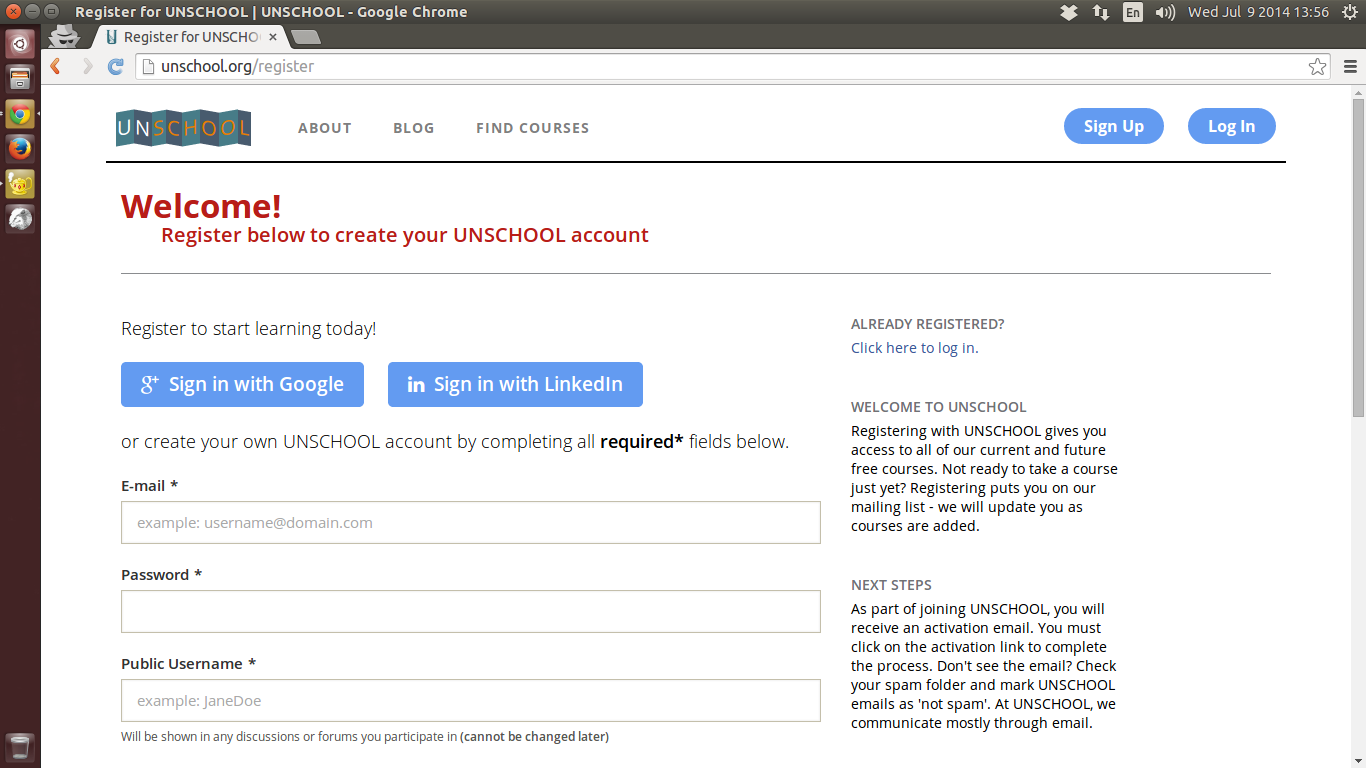
Yesterday, I's trying to enable the THIRD_PARTY_AUTH feature of the OpenEdX following these article of the author: Overview of the feature: http://johnmcox.blogspot.com/2014/05/getting-started-with-edx-third-party.html To understand how the feature works in OpenEdX: http://johnmcox.blogspot.com/2014/05/understanding-edx-third-party.html I did everything the author said to enable the third party authentication feature to allow my users at UnSchool using their GMail or LinkedIn account to log in to our OpenEdX, including: 1. I did enable the feature in the /edx/app/edxapp/lms.env.json: ...     "FEATURES": {         "ENABLE_THIRD_PARTY_AUTH": true,         "AUTH_USE_OPENID_PROVIDER": true,         "AUTOMATIC_AUTH_FOR_TESTING": false, ... 2. Create Google and LinkedIn apps, then fill in the /edx/app/edxapp/lms.auth.json with keys and secrets of these apps (at the end of the json): ...   ...

Using SimpleSAMLphp to authenticate users in Google Apps with Active Directory

To let my users login to Google Apps using Active Directory accounts, I can use SimpleSAMLphp as an IdP which gets identities from my Active Directory servers. Things are pretty easy with simplesamlphp, of-course: 1.  SimpleSAMLphp configurations: simplesamlphp/config/authsources.php : simplesamlphp/config/config.php : simplesamlphp/www/logout_relay.php : (because Google does not allow log out URLs that have question mark and parameters) 2. Google App settings: >> Go to https://admin.google.com and login as my Google App administrator account. >> Security -> Advanced Settings -> Setup Single Sign-on (SSO) : + Check "Enable Single Sign-on" + Sign-in page URL * https://mydomain.com/simplesaml/saml2/idp/SSOService.php + Sign-out page URL * https://mydomain.com/simplesaml/logout_relay.php + Change password URL * https://mydomain.com/ >> Click " Save changes " 3. NGINX server block for simplesamlphp: ...

Chromium OS first try

Image
I've just tried the Chromium OS for the first time. Getting started with that OS is quite fast and easy. 1. First, download the pre-built image from  http://chromeos.hexxeh.net/  (You can choose the VMWare, VirtualBox, or USB live image). In my case, I load the image to my USB following the instructions in the link above: 1 Extract the IMG file from the downloaded archive 2 At the shell, run the following (where sdX is your USB stick and ChromeOS.img is the path to the IMG file you extracted): dd if=ChromeOS.img of=/dev/sdX bs=4M 2 . Boot from the newly created Chromium OS USB stick and Enjoy the beauty 3 . Install some development tools:   http://joemarini.blogspot.com/2013/11/tools-for-developing-on-chromeos.html 4 . ChromeOS crosh commandline :  http://www.howtogeek.com/170648/10-commands-included-in-chrome-oss-hidden-crosh-shell/ Cool huh?!

Google Drive API - A better way to get files you own

In the previous blog post about how to search your own files I used 'isAuthenticated' key to see if a file is mine ( here ). Today, I found a better and more accurate way to get files you own in Google Drive using the API: + Use the following query to search for files: query = "'%s' in owners and trashed = false" % user_email or query = "'me' in owners and trashed = false" def search_files (service, query_string):     result = []     page_token = None     while True:         try:             param = {}             if page_token:                 param['pageToken'] = page_token             param['q'] = query_string             files = service.files().list(**param).execu...

A story of the Googler #13

Image
Today, I read a story about a man who did whatever he can to get a job. He's is Steve Schimmel, the Google's employee number 13. The article appeared on Hacker Monthly Issue #12, Published May 2011 ( http://hackermonthly.com/issue-12.html ) Here is the story: