Posts

Showing posts with the label VMware

What to do when your root account in vCenter has been locked out
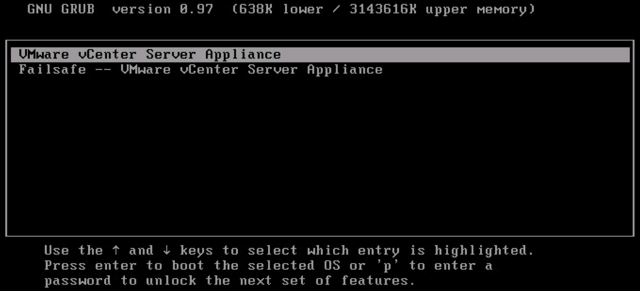
Image
If the root account is not accessible through the console, the secure shell, and the Virtual Appliance Management Interface (VAMI) (vCenter Server Appliance 5.5 and 6.0 Update 1), the root account has been inactivated due to password expiration or too many fail attempts . To reactivate the root account, the vCenter Server appliance must be rebooted and the kernel option modified in the GRUB bootloader to obtain a root shell. To reactivate the root account: 1. Reboot the vCenter Server appliance using the vSphere Client. 2. When the GRUB bootloader appears, press the spacebar to disable autoboot. 3. Type  p  to access the appliance boot options. 4. Enter the GRUB password. Note : If the vCenter Server appliance was deployed without editing the root password in the Virtual Appliance Management Interface (VAMI), the default GRUB password is  vmware . If the vCenter Server appliance root password ...

Enter bash shell mode of vmware vcenter server console

These are the commands that you need to enter to go the bash shell mode of vCenter server appliance: Command> shell.set --enabled true Command> shell

Scheduling VMWare virtual machines backup with Veeam Backup Free v9 and PowerShell

The Veeam Backup Free v9 is quite good but it lacks of scheduling the backup task. Fortunately, it supports powershell so you can leverage this following script to backup vms without upgrading to the Pro version: 1. Download and Install Veeam Backup & Replication Free v9 in a Windows machine (It's Windows Server 2008 R2 in my case): https://www.veeam.com/virtual-machine-backup-solution-free.html Note that It may require you to install Microsoft .NET framework 4.5.2 and Microsoft SQL Server 2012 Express if your server does not have them. 2. Install PowerShell v3, it's Windows Management Framework 3.0 (the script works best with PowerShell v3): https://www.microsoft.com/en-us/download/details.aspx?id=34595 for Windows Server 2008 R2, I installed the  Windows6.1-KB2506143-x64.msu package. 3. Download this file and edit it with your own information (server name, email settings...) 4. Create a schedule task to run the script every weekend at 1AM for example. ...

Generate snapshots report of all VMWare virtual machines using PowerCLI

Ok, so I heard that you're tired of going to every virtual machines in your VMWare vCenter and checking for snapshots that need to be removed. VMWare has provided a solution that can ease your pain, It's PowerCLI . In short,  PowerCLI is a Windows PowerShell interface for managing VMware vSphere. It comes with a lot of useful cmdlets that will help you manipulate your VMWare infrastructure smoothly and painlessly (sort of) including automating tasks. Here is how I can generate a snapshots report of all the virtual machines in my VMWare 6 environment: 1. In a Windows Server 2008 R2 SP1 (or Windows 7 and above), install these dependencies: vSphere client v6 for windows: download here . Microsoft Management Framework 3.0 : download here (for Windows Server 2008 R2 SP1, I will download Windows6.1-KB2506143-x64.msu package) 2. Download and install PowerCLI: Download the latest PowerCLI here . It's PowerCLI 6 R3 at the time I write this article. 3. Open Powe...

A first look at vSphere SDK for Python

VMware've just recently released the vSphere SDK for Python, the pyVMomi , at last year Christmas. And that is a great news to me. The source code can be found at: pyVmomi Github Repository: https://github.com/vmware/pyvmomi pyVmomi Pypi package: https://pypi.python.org/pypi/pyvmomi I've just dig around the sample scripts and found it pretty cool. For example, I ran the geallvms.py to get all virtual machine info : python sample/getallvms.py --host vmware.host.domain --user vmadmin --password VMAdminPass It showed me something like: Name       :  server1 Path       :  [iSCSI LUN 536Gb-A] server1/server1.vmx Guest      :  Ubuntu Linux (64-bit) State      :  poweredOn IP         :  172.55.1.67 Name       :  server2 Path       :  [iSCSI LUN 536Gb-B] server2/server2.vmx Guest      :  Ubuntu Linux (64-bit) S...