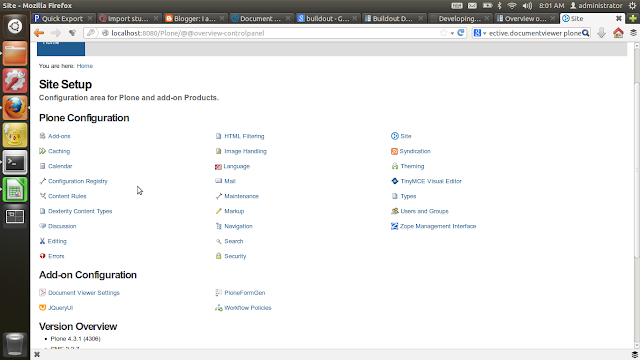
To enable Plone to be able to review my uploaded documents, I will install the documentviewer addon. Addon URL: http://plone.org/products/document-viewer Following these steps:
I was looking for a Document Management System written in Python, and I found Plone. Genius! Plone is a CMS but It has so many features and plugins so I can make it a DMS easily. Just amazing! There is an easy way to deploy a Plone instance. It's via vagrant. Just follow these following steps:
It's just really weird that when I deploy my wordpress site on to the hosting service, the language of the site is still English (the default), and the qtranslate plugin did not work. Thing is everything is just OK in my laptop. What's wrong with the host? And, I figure out that I have to define the language directory of my wordpress site, and everything is OK: define('WPLANG', 'vi'); define('WP_LANG_DIR', $_SERVER['DOCUMENT_ROOT'].'/wp-content/languages');
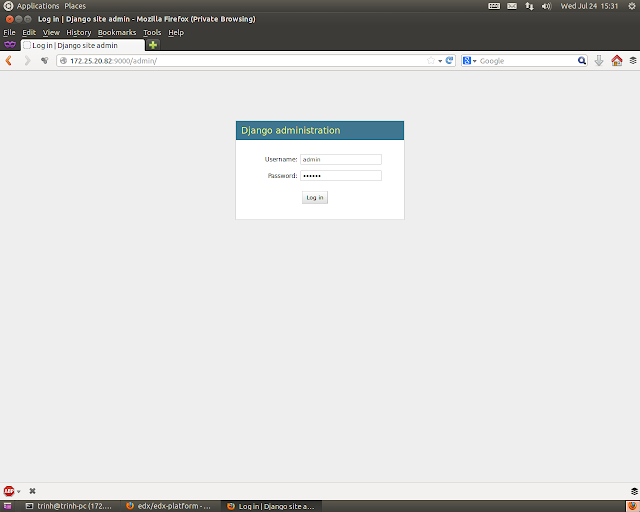
In development environment, when creating an user account, you need to verify that account. The verification email will be logged to the console, so you can take a look at the terminal and get the activation url ( click here to see the edx's instruction ). But if you can't see that link, you can do the following: 1. Create a superuser account: rake django-admin["createsupseruser"] 2. Login to the django admin app of LMS (through the url "http://192.168.20.40:8000/admin" or in my case I used the url "172.25.20.82:9000/admin" to access the machine that running the edx-platform) by the superuser account, and check Active status for the user you want to activate:
You will see a blue warning message when starting the LMS or CMS: " p hantomjs not found on path. Set $PHANTOMJS_PATH. Using browser for jasmine tests " It's not something fatal, but I want to get rid of it :D Here is how i did it: 1. Inside the VirtualMachine (vagrant ssh), cd to /opt/edx/edx-platform/node_modules/ and install phantomjs : sudo npm install phantomjs -g phantomjs will be installed inside the node_modules dir. Change permission for the phantomjs dir: sudo chmod 755 phantomjs 2. Include the phantomjs path to your PATH: add this line to the end of ~/.bashrc : export PATH=$PATH:/opt/edx/edx-platform/node_modules/phantomjs/bin eval "$(rbenv init -)" And no more warning / error about phantomjs. Updates July 24, 2013: Pull the latest source code from master and you only need to install the phantomjs, and everything will just be fine: `sudo npm install phantomjs -g `.
After deploying the edX-platform, I now can experiment the LMS and CMS (the Studio). 1. Create a course: here are some basic steps and notes a/ In the Studio (192.168.20.40:8001, in my case, I use 172.25.20.82:8001), login and create a course: b/ Change settings for the course in Settings >> Schedule & Details :